The Audit tab enables you to view all data entries for the Profile in the current time and scenario. The tab displays all historical entries made, the user who made the entry, and the timestamp for the entry.
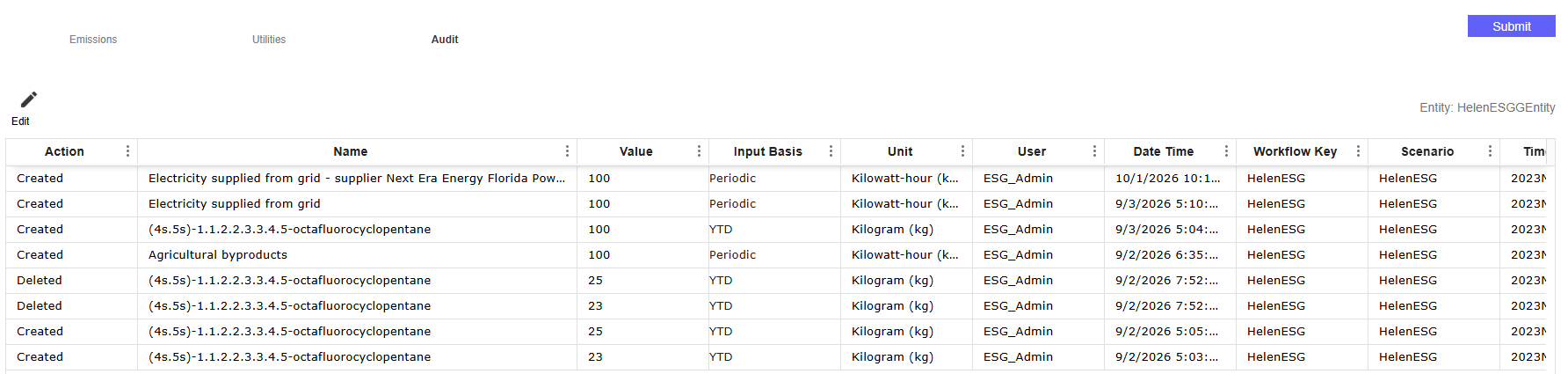
The Action column lists the operation performed on each record.
| Action Column Value | Description |
|---|---|
| Created | A new data entry was made in the Definitions, Emissions, or Utilities tab. |
| Modified | The data entry was modified in the Definitions, Emissions, or Utilities tab. |
| Imported from Template | The data entry was imported from an Excel template on the Definitions, Emissions, or Utilities tab. |
| Imported from Workflow | The data entry was imported through the OneStream workflow import process. |
| Deleted | The data entry was deleted in the Definitions, Emissions, or Utilities tab. |
| Deleted from Workflow | The data entry was cleared from the workflow. |
NOTE: For Emissions data entries with two values, only the first value displays in the Audit grid.
Manage Audit Data
To edit a selected data entry, select the Edit button. The Edit button displays when the Profile status is Not Started or In Process. A slide-out panel displays with a Data Entry tab and an Audit tab. You can modify data in the Data Entry tab. When an entry is modified and saved, the new values display in the Audit grid.
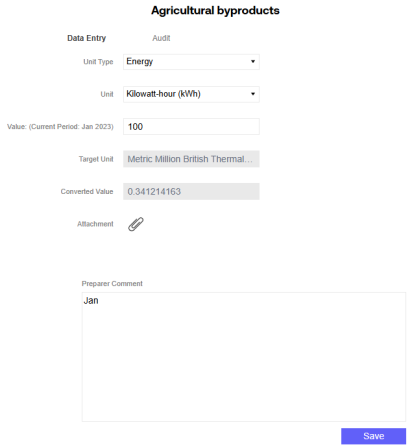
The Audit tab enables you to view all changes made to the selected entry.

The View button displays when the profile status is Submitted or Completed. When viewing an audit record, the fields in the Data Entry tab are read-only.
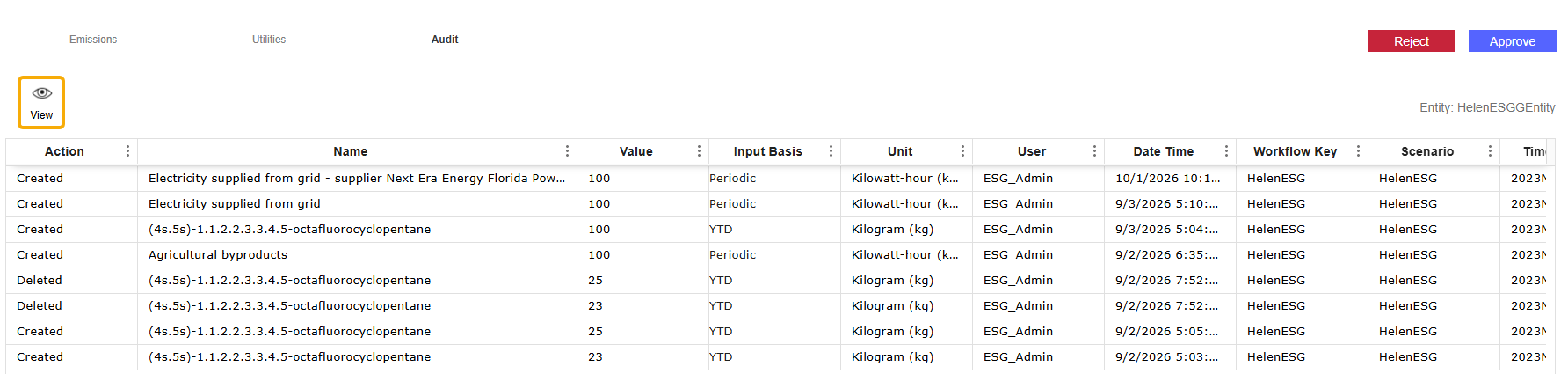
If you select the Edit or View button for a deleted record, only the Audit tab displays for that specific entry.
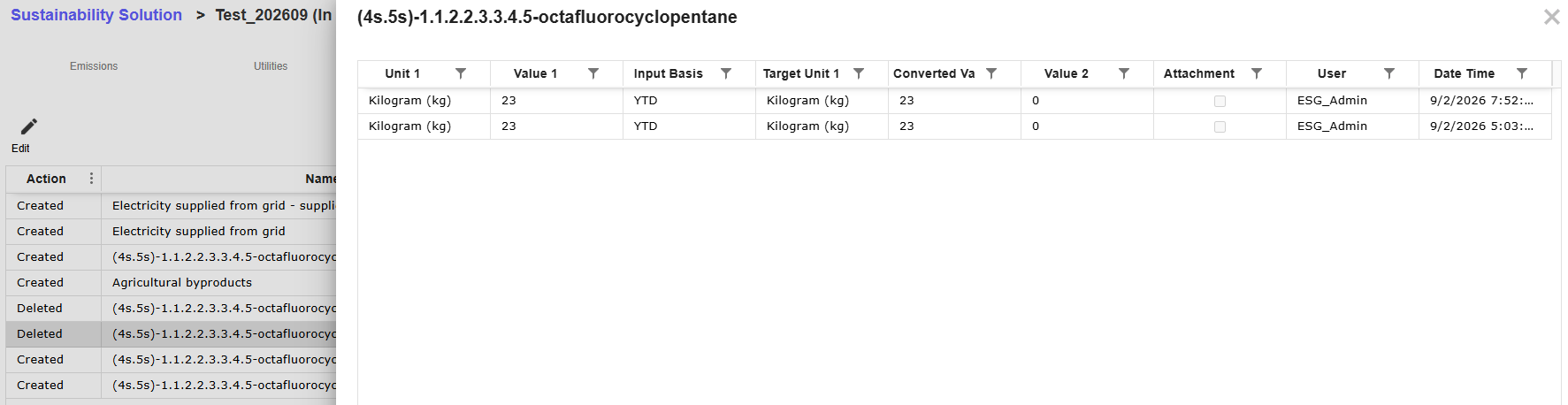
The Edit and View slide-out panels always display the most up-to-date version of the data entry.
Example: A data entry is created, then modified. If you select the data entry's first record in the grid, labeled as Created, the Edit or View slide-out panel will show the modification made after the entry was created.

